Requires WordPress 3.5.
Menu Helper can be used in 2 forms: as short code ( as described in section A) or, for more advanced programmatic use, as function which returns an array (as described in section B). For both usage styles the options are the same.
Download from here.

I started this blog long time ago. No idea why. Now I use it to post here my daily/weekly/monthly/yearly revelations.

Showing posts with label wordpress. Show all posts
Showing posts with label wordpress. Show all posts
Tuesday, May 28, 2013


Thursday, September 29, 2011
Wordpress Comment Extra Fields Plugin
I made the first version of a plugin I will continue to develop for the next weeks. How to use it/features list:
Edit
WordPress.org accepted my plugin, just added it to their SVN (heh:D). I will post link here asap it is available (where's the wittle happy monkey? where's the wittle happy monkey? a-gu-gu-gu to me!).
Edit
Best link
- install the plugin (copy it to wp-content/plugins);
- activate it
- go to Settings. The plugin adds a new option under that menu: Comment Extra Fields
- in Comment Extra Fields page you can see the extra fields already defined (and edit / delete each of them) or define new extra fields to be added to your comment form
- all fields are mandatory (even not all tested for that)
- the types of fields one can define on admin are:
- text field
- textarea
- checkboxes: field to define the values to display on front comment form
- radio buttons: field for values
- drop down: field for values
- file: the upload on front is made using swfupload for jquery
- (database) db select: fill in the name of a table (with or without the wordpress prefix) and 2 column names for id and values and on front the drop down will be populated with the database values
- mouse over the labels and, if there are any, tooltips with hints will be shown
- on front the plugin comes with a .css using twentyeleven form style
- allow extra fields to be required
- add date extra field type
- allow extra fields to be shown on logged in user or not logged in user
- add option to remove the default comment fields: author, url and email
- on admin side allow user to define the HTML code for more flexible DOM display
Edit
WordPress.org accepted my plugin, just added it to their SVN (heh:D). I will post link here asap it is available (where's the wittle happy monkey? where's the wittle happy monkey? a-gu-gu-gu to me!).
Edit
Best link
Saturday, September 17, 2011
Wordpress WPML Edits
In one of my recent projects I had to use WPML, a very well done plugin for Wordpress for Multi Languages sites. It is based on the idea of keeping translations of different posts in another posts linked to the first one. This way the problem of translated URLs is solved in a very elegant manner. Also all fields appear only one time per translation (which is really nice. If you have 10 fields and you need to translate it in almost 30 languages you won't end up with almost 300 fields on a post edit page).
My problem appeared when I had to define some custom languages and then I wanted to change their names. On a site there can be different content for users whith IP from Europe and have their browser set to English and users with IP from US and their browser language set to English...so I need the default en plus some user defined language, let's say en-euro. If instead of en-euro I wanted to use en-emea the only possible solution would have been to define the new language and use the new one. So, I ended up looking in all _icl tables and try to figure out where the language codes are used. Same thing for a language name. After updating information in those tables the changes were not visible unless I deleted the plugin's cache (kept in wp_options, option_name='_icl_cache').
There are some risks in using my new plugin:
After you copy the .zip's content into wp-content/plugins directory and you activate it, a new option will appear under Settings menu called WPML Edits. When you click on it a form will appear where you can set the Old code, New code, Old name and/or New name and when you click Apply changes the database updates run. You need to use an already existing code/language name for Old code and Old name values and a not already existing code/language name for New fields values.

My problem appeared when I had to define some custom languages and then I wanted to change their names. On a site there can be different content for users whith IP from Europe and have their browser set to English and users with IP from US and their browser language set to English...so I need the default en plus some user defined language, let's say en-euro. If instead of en-euro I wanted to use en-emea the only possible solution would have been to define the new language and use the new one. So, I ended up looking in all _icl tables and try to figure out where the language codes are used. Same thing for a language name. After updating information in those tables the changes were not visible unless I deleted the plugin's cache (kept in wp_options, option_name='_icl_cache').
There are some risks in using my new plugin:
- I didn't test it for all types of WPML translations;
- I don't know what happens if one had already made mane translations and then deletes the plugin's cache from wordpress' database (of course, I can figure out from WPML code, but I had been too busy for that. If I get any emails with problems related to this issue described I will try to go deeper into this issue);
- There might be still hidden issues with this approach (maybe the creators of the WPML plugin had their reasons not to include this option. On edit languages form the fields for language name and code are disabled...)
After you copy the .zip's content into wp-content/plugins directory and you activate it, a new option will appear under Settings menu called WPML Edits. When you click on it a form will appear where you can set the Old code, New code, Old name and/or New name and when you click Apply changes the database updates run. You need to use an already existing code/language name for Old code and Old name values and a not already existing code/language name for New fields values.

Wednesday, February 9, 2011
WordPress plugin - Domains Update
I dared a few days ago to share a plugin I made with my work mates. It took me about 10 days to decide to do it (the sharing part). Last night my boss called me to ask me how to use it and in the end his conclusion was that it was not doing what I said it would...but, as usual, I had the "revelation" in the morning - meaning like 10 minutes ago.
So, I decided to put it here and see what kind of problems other people might have with it(omg...I am so evil).
What I pretend this plugin to do: updates values in database.
When you should use it: when you move your Wordpress site from one domain to another and you want to keep the database consistent.

Let's imagine the scenario when you move your Wordpress site from location A to B.
Options description:
1. Old domain - in our case would be A
2. New domain - in our case would be B
3. URL format - uncheck it if any of the domains does not have an URL format (e.g. localhost)
4. Select custom table(s) - when you press this button a list of the Wordpress' database tables is shown. When you select a table, a list of its columns is shown. Use this to update the values of old to new domain in other tables than wp_posts and other columns than wp_posts.guid and wp_posts.post_content (these are the default location of the update).
5.Update only custom tables - if this option is selected the default locations are skipped.
6. Run changes - runs the database updates.
Note 1: you can run this plugin multiple times.
Note 2: if you need to make updates in custom tables make sure you selected at least one table and for each table at least one column (otherwise it will tell you that there was no data to update).
Note 3: you might wonder why the plugin's name is Domains Switcher and in administrator's dashboard the name is Update Domains. Because I like to screw users' mind.
One more thing. The steps I follow when I need to move a Wordpress site from domain A to domain B and on domain A there is already content that needs to pe kept on domain B:
You can download the plugin from here.
Known issue: Don't use it to update the information in cformsII plugin. It will alter the serialized string containing the cforms settings (and the plugin will stop from working). If you need to move cformsII to another domain, my suggestion is to install the plugin to the new locationa and backup-restore the forms from the old domain to the new one. If you have more than one form created with cformsII, just add new forms and backup-restore them. The global forms settings need to be update "manually" though.
So, I decided to put it here and see what kind of problems other people might have with it(omg...I am so evil).
What I pretend this plugin to do: updates values in database.
When you should use it: when you move your Wordpress site from one domain to another and you want to keep the database consistent.

Let's imagine the scenario when you move your Wordpress site from location A to B.
Options description:
1. Old domain - in our case would be A
2. New domain - in our case would be B
3. URL format - uncheck it if any of the domains does not have an URL format (e.g. localhost)
4. Select custom table(s) - when you press this button a list of the Wordpress' database tables is shown. When you select a table, a list of its columns is shown. Use this to update the values of old to new domain in other tables than wp_posts and other columns than wp_posts.guid and wp_posts.post_content (these are the default location of the update).
5.Update only custom tables - if this option is selected the default locations are skipped.
6. Run changes - runs the database updates.
Note 1: you can run this plugin multiple times.
Note 2: if you need to make updates in custom tables make sure you selected at least one table and for each table at least one column (otherwise it will tell you that there was no data to update).
Note 3: you might wonder why the plugin's name is Domains Switcher and in administrator's dashboard the name is Update Domains. Because I like to screw users' mind.
One more thing. The steps I follow when I need to move a Wordpress site from domain A to domain B and on domain A there is already content that needs to pe kept on domain B:
- Copy all needed files from A to B
- Export-import database from A to B
- On B, go to database and in table wp_options where column option_name has value siteurl and home the column option_value should have value A. Change it to B.
- On B, open file wp_config.php and update the information for database connection on B
- Enter wordpress admin on B (now you should be able to do that) and install and activate the Domains Switcher aka Update Domains plugin
- If all you need to update are posts and pages, run it with simplest configuration (without custom tables). The files uploaded and inserted into posts now will be taken from B, instead of A.
- If you used plugins which create their own tables, run the plugin against tables and columns that you know might contain URLs (e.g. for a slideshow plugin, it might keep in a custom table the links to images it uses)
- Sometimes plugins which do not create their own tables might insert links in column wp_postmeta.meta_value
You can download the plugin from here.
Known issue: Don't use it to update the information in cformsII plugin. It will alter the serialized string containing the cforms settings (and the plugin will stop from working). If you need to move cformsII to another domain, my suggestion is to install the plugin to the new locationa and backup-restore the forms from the old domain to the new one. If you have more than one form created with cformsII, just add new forms and backup-restore them. The global forms settings need to be update "manually" though.
Tuesday, February 8, 2011
How to add different custom content on WordPress pages
In the last few months I had to work on different WordPress sites which required different content on different pages. That content was supposed to be manageable from WordPress administrator account. As I was new to WordPress I decided to create a plugin each time I needed manageable content to appear on different pages. This morning I just figured out how to take advantage of some already made WordPress plugins which would make this task much easier and much efficient, from my point of view.
Let's take the example of adding different Sidebars on each page of a site.
1. The plugin I am using is Custom Post Type UI. After installing and activating it I define my custom type Sidebars. From plugin's Advanced Options I choose it to support Title, Editor and Custom Fields. I also define a taxonomy for this custom type, called Page Sidebars and I attach it to Post Type pages.

2. Now in Dashboard I have a new option to administrate the custom type I just defined. So all I have to do is to go to Sidebars and start adding new content of this type.

3. When I insert new pages in the left of the editing window I can add the custom types by their title.
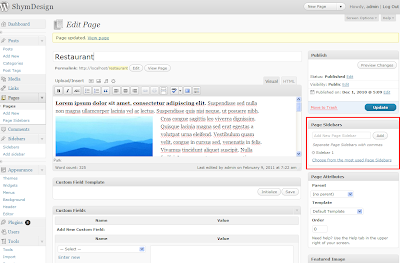
4. Now the code I use in sidebar.php from my theme to get for each page the content of each custom type sidebar related to each page.
In functions.php of your theme define
Let's take the example of adding different Sidebars on each page of a site.
1. The plugin I am using is Custom Post Type UI. After installing and activating it I define my custom type Sidebars. From plugin's Advanced Options I choose it to support Title, Editor and Custom Fields. I also define a taxonomy for this custom type, called Page Sidebars and I attach it to Post Type pages.

2. Now in Dashboard I have a new option to administrate the custom type I just defined. So all I have to do is to go to Sidebars and start adding new content of this type.

3. When I insert new pages in the left of the editing window I can add the custom types by their title.

4. Now the code I use in sidebar.php from my theme to get for each page the content of each custom type sidebar related to each page.
/* get the global post variable to know on what page you are on */
global $post;
/* for the given page, get the taxonomies of type page_sidebars */
$data          = get_the_terms($post->ID, 'page_sidebars');
$my_sidebars   = array();
foreach($data as $sidebar):
/* get the post of type sidebars with the name of the page_sidebars taxonomy */
$my_sidebars[] = get_post_by_name($sidebar->slug, 'sidebars');
endforeach;
In functions.php of your theme define
function get_post_by_name($page_name, $post_type = 'post', $output = OBJECT) {
   global $wpdb;
   $post = $wpdb->get_var( $wpdb->prepare( "SELECT ID FROM $wpdb->posts WHERE post_name = %s AND post_type= %s", $page_name, $post_type ));
   if ( $post )
      return get_post($post, $output);

   return null;
}
Note: If you need new fields for your custom types, there is another plugin easy to use and integrate with Custom Types UI: Custom Field Template
Subscribe to:
Posts (Atom)